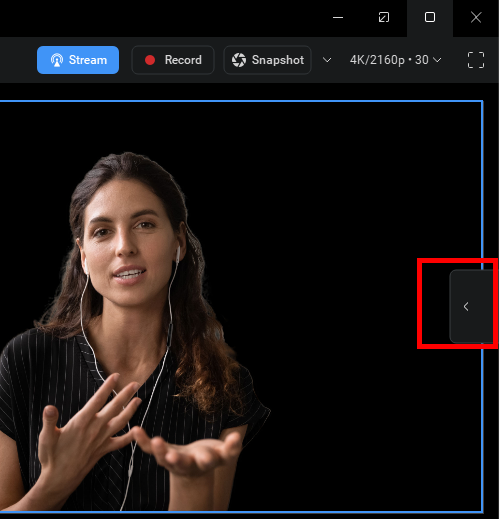
Run ManyCam, click on the Realtime Toolbar icon for a quick access to Virtual Background feature.
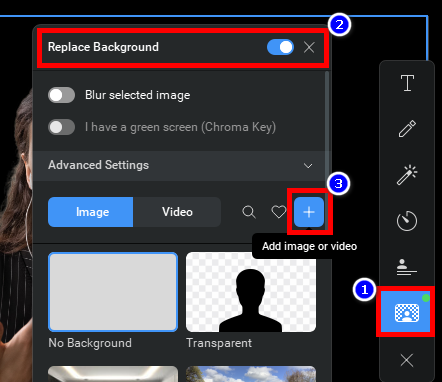
Click on the Virtual Background icon. Enable Replace Background. Then, click on the + sign with tooltip ‘Add image or video’.
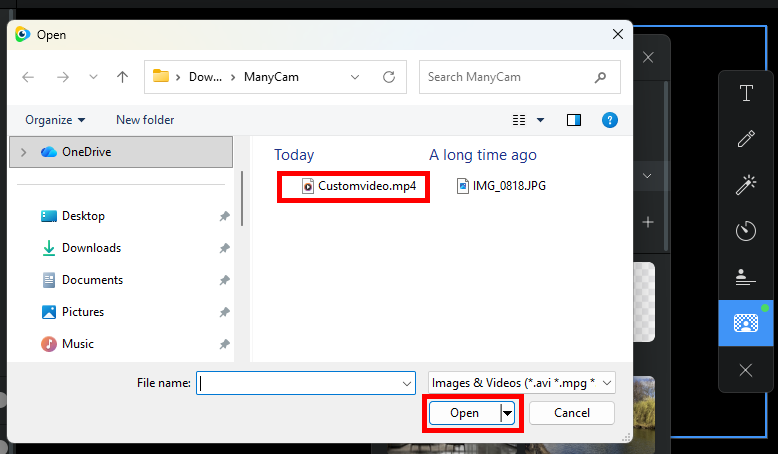
This will pop up the file explorer window. Navigate to your custom video location, select the video to apply as background and press Open as shown below.
If you want to learn more about Virtual Backgrounds, check out this guide.