Compatibility & Requirements
Make sure your TikTok Live Studio is up-to-date. You can download the latest update here.
Make sure you meet all conditions required by TikTok to go live. More info can be found on TikTok web site.
How to connect ManyCam with TikTok Live Studio
There are two ways to connect ManyCam with TikTok LIVE Studio. The first option is to set ManyCam the very first time you launch TikTok LIVE Studio. The second option is to set ManyCam afterward.
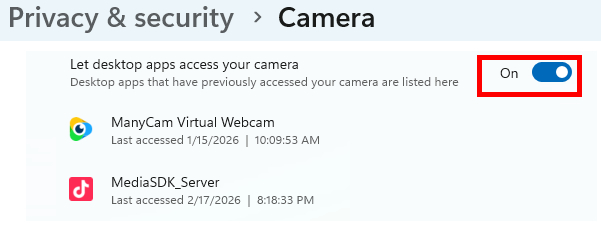
First, go to Windows Settings / Privacy & Security / Camera.
Make sure Let desktop apps access your camera is activated.
Connecting ManyCam the very first time you launch TikTok LIVE Studio
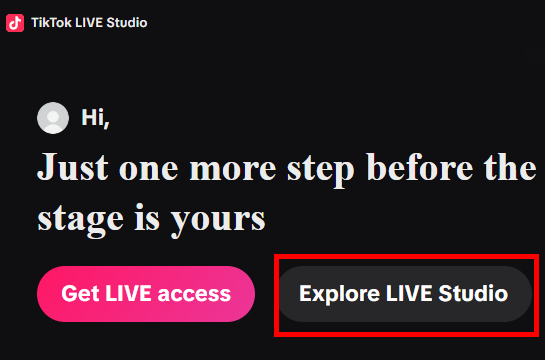
Launch TikTok LIVE Studio. Click on the Explore LIVE Studio button.
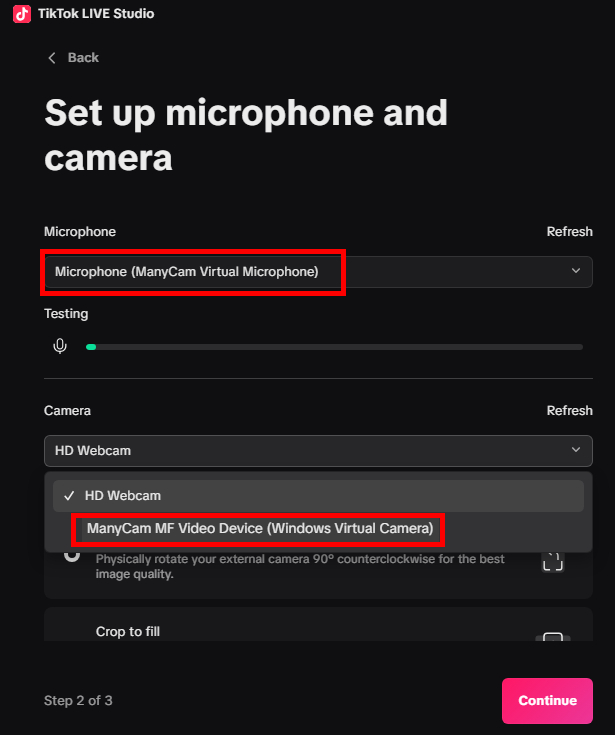
You will be prompt to set microphone and camera. Select ManyCam Virtual Webcam and ManyCam Virtual Microphone in the respective fields as shown below:
Connecting ManyCam Camera with TikTok LIVE Studio anytime
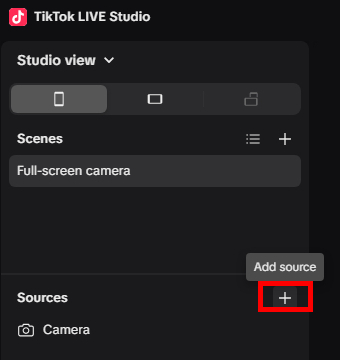
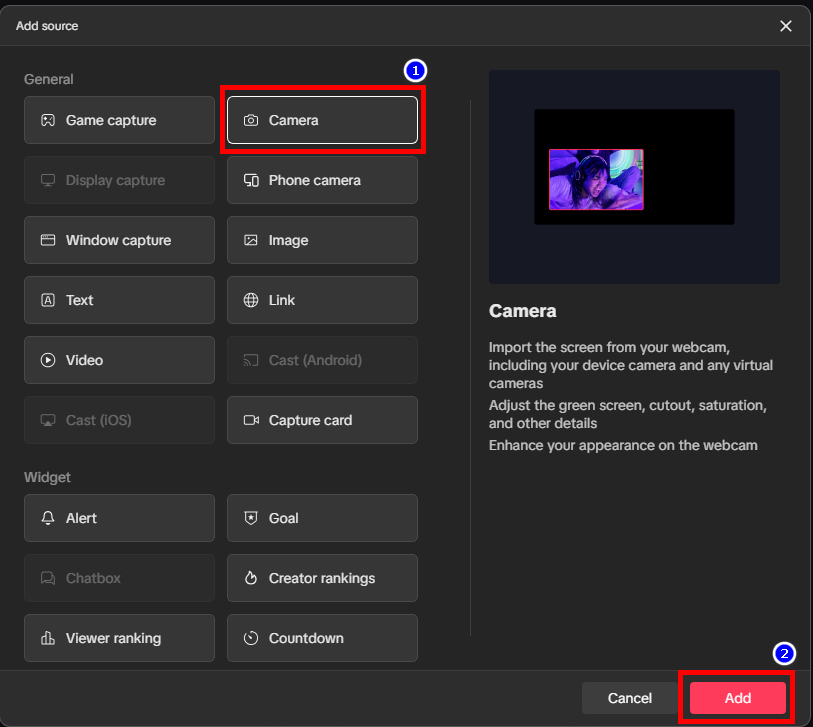
Launch TikTok LIVE Studio. In the Sources section, click on Add source + sign icon.
In the Add source window, select Camera. Select Add button.
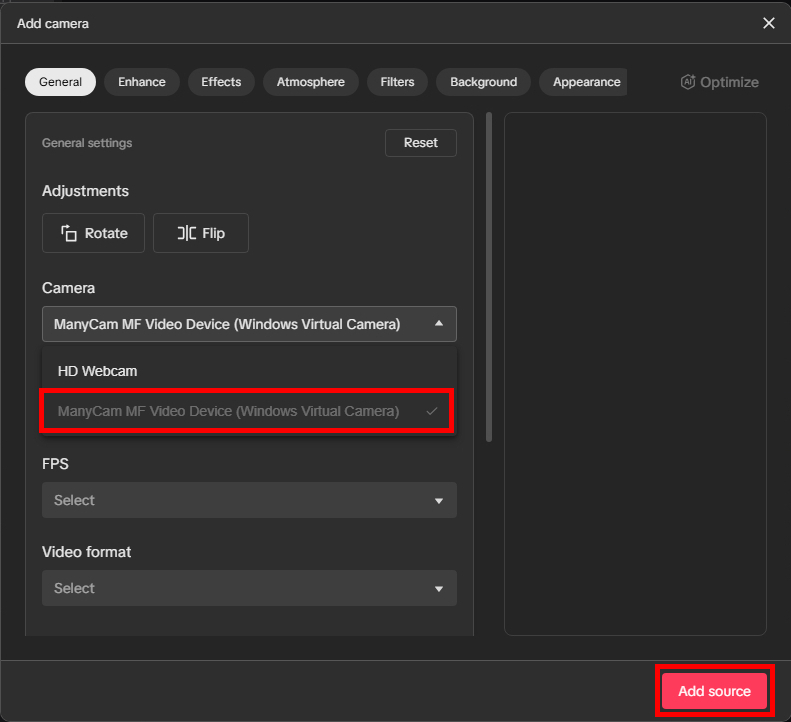
Select ManyCam Virtual Camera. Make adjustments if needed (rotate or flip). Click on Add source button.
Connecting ManyCam Audio with TikTok LIVE Studio anytime
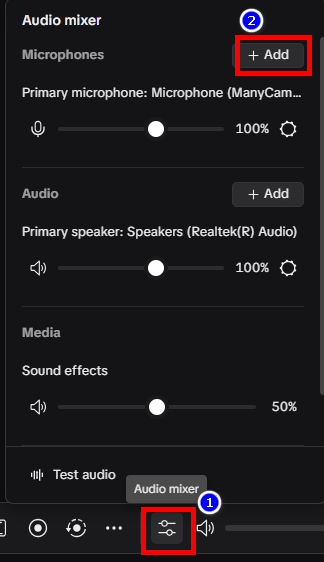
From the bottom part of TikTok LIVE Studio, click on Audio Mixer icon. And click on Add button next to Microphones.
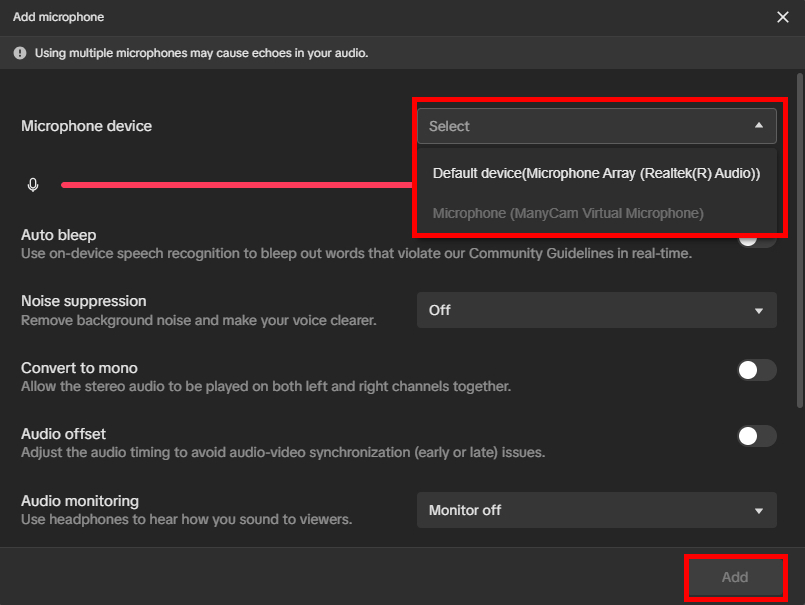
Select ManyCam Virtual Microphone as the Microphone Device. Click on Add button to finalize the choice.
Video tutorial
With ManyCam Virtual Backgrounds, you can easily replace your camera with ManyCam virtual camera on TikTok Live Studio and any other video conferencing app. Users can use virtual background, blur their background, remove it, and even replace it with images or other video sources.