Compatibility & Requirements
Make sure your WhatsApp desktop is up-to-date. You can download the latest update here.
How to connect ManyCam with WhatsApp
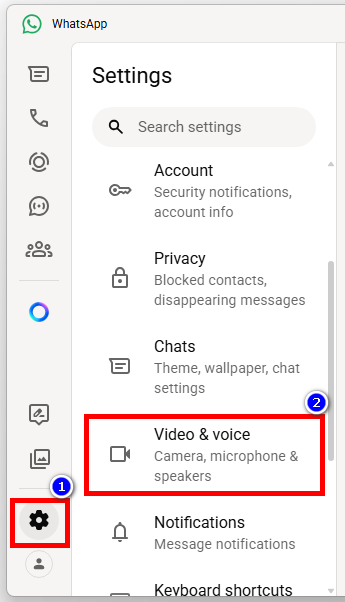
Launch whatsApp desktop. Click on the Settings icon. Navigate to the Video & voice tab.
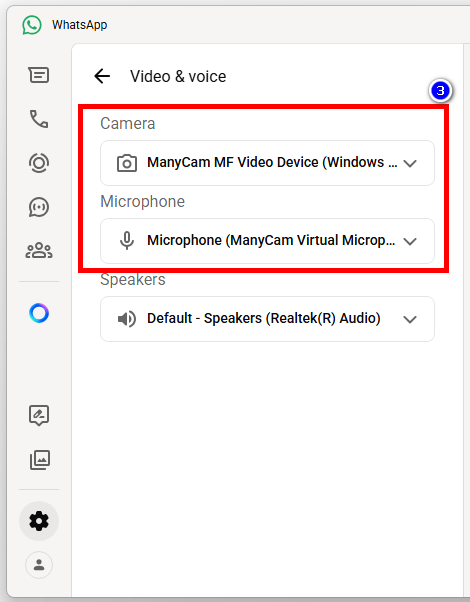
Select ManyCam Virtual Webcam and ManyCam Virtual Microphone in the respective fields as shown below:
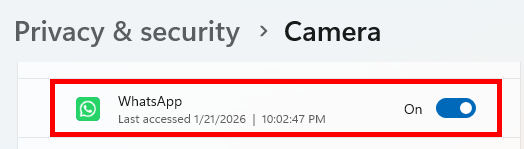
Make sure WhatsApp camera is activated. Go to Windows Settings / Privacy & Security / Camera. Then turn on WhatsApp camera.
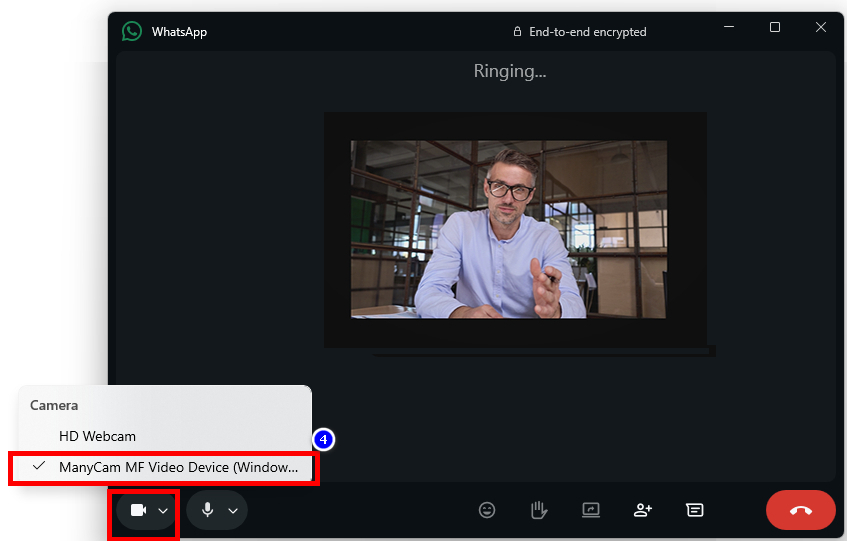
Click on WhatsApp video icon to start a video call. Make sure to select ManyCam as camera in the WhatsApp video window as shown below:
Video tutorial
With ManyCam Virtual Backgrounds, you can easily replace your background on WhatsApp and any other video conferencing app without a green screen. Users can blur their background, remove it, and even replace it with images or other video sources.