What kind of data can be exported?
This feature allows you to save preset state only (playlist settings, item order and type, video source layouts like crop, zoom, opacity, corner radius settings, etc). ManyCam will not save actual files, effects, or other video sources on your computer. When exporting a saved preset or a collection of presets, it is advised to keep the files that were being used at the time of export (images, videos, effects, presentations, PDFs, etc) available locally in the same locations on your computer. Also, make sure that the same devices that were being used at the time of export (webcams, audio inputs, etc) are connected and available to ensure that ManyCam can access them freely and re-connect during import. If any video source is missing or unavailable, ManyCam will prompt you to replace it with another video source of the same kind.
How to export a preset
When exporting a preset, ManyCam saves the preset’s state into a single file (*.mcbox).
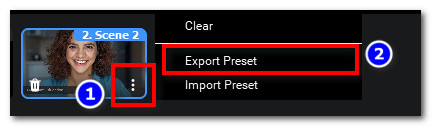
- Click the vertical 3 dots in the preset small windows below the main screen, or simply right-click on the preset you’d like to export.
- Select Export Preset.
- You will then be prompted to save a preset state as a file on your device.
How to import a preset from a file
- Add a new preset by clicking on the + button from the preset section below the main screen.
- Click the vertical 3 dots in the new preset small windows, or simply right-click in the new preset small windows.
- Select Import Preset.
- You will then be prompted to load a preset from a file (*.mcbox) stored locally on your device. Select the file and press Open.

How to export a project
When exporting a project, ManyCam saves all of your presets’ settings into a single file (*.mcpro).
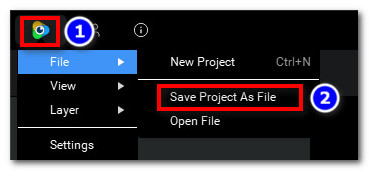
- Click on the ManyCam logo in the upper-left corner.
- Select File / Save Project As File.
- You will then be prompted to save a preset state as a file on your device.
How to import a project from a file
When importing a project, ManyCam loads a preset collection from a single file (*.mcpro).
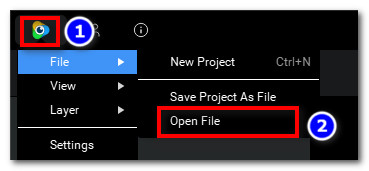
- Click on the ManyCam logo in the upper-left corner.
- Select File / Open File.
- You will then be prompted to load project settings from a file (*.mcpro) stored locally on your device. Select the file and press Open.
Missing video sources
In case some video source is missing or no longer available, ManyCam will offer you to replace it with a different source of the same kind.
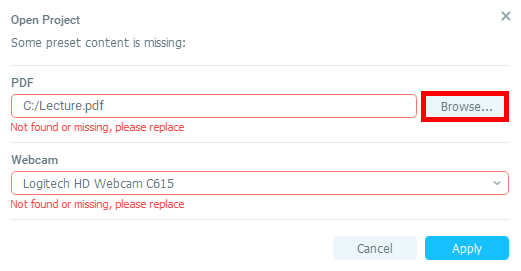
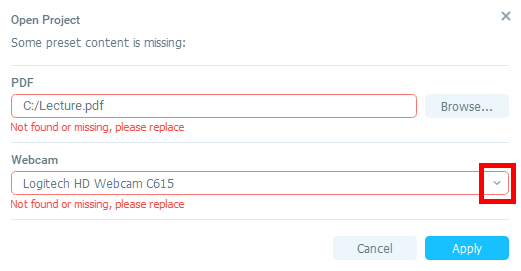
Should this occur, you will see the following dialogue box.
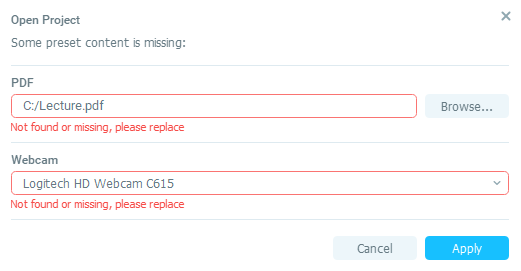
To proceed with replacing a file, click on the Browse button as shown below and select a replacement or find the original file manually.
If you need to replace another type of video source, for example, a webcam, select it from the drop-down list that appears when you click on the arrow as shown below.
Once done, click Apply to proceed with importing.