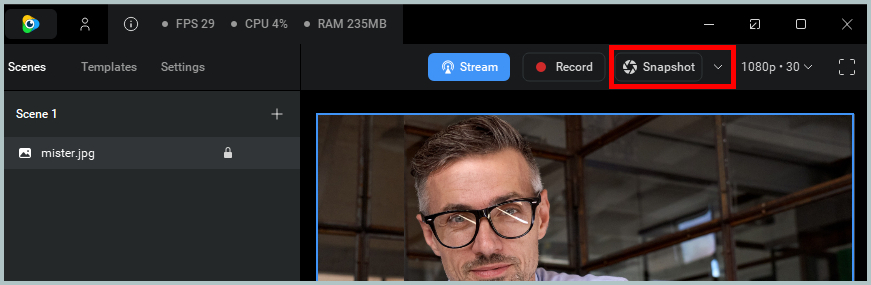
ManyCam snapshot feature captures still images (snapshots) of the video feed directly from the interface by clicking the snapshot icon in the video window area. These images are saved to a dedicated Gallery tab and can be used for various purposes. Snapshots are useful for capturing, storing, and reviewing moments during a live stream or recording, with options to create custom albums.
How to take a snapshot
Click the Snapshot button located in the video window area.
Storage
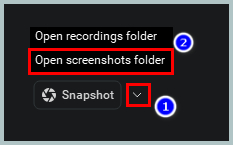
Click on the down arrow next to the Snapshot button and select ‘Open screenshots folder’
The path should be like this: C:\Users\username\Pictures\ManyCam
Recommandation
For best performance please follow these recommendations:
- Make sure the background has no moving objects or lighting changes.
- If possible make the background as plain as possible and try to have contrast between the background and your face/body.
- Do not move your webcam after you take the snapshot. If you move your webcam you’ll need to take a new snapshot.
- Turn OFF all automatic settings on your camera such as auto exposure, auto white balance, auto gain and zooming/panning options. Activate “anti-flicker” in your webcam settings if possible. You can access these settings via the software that came with webcam or go to the “sources” window in ManyCam, choose “Properties” and click on “Driver Properties”.