You can stop the auto-renewal of your ManyCam subscription from your ManyCam account or from the payment processor used during purchase.
It is important that you cancel before the renewal date to avoid charges.
Ensure you receive a confirmation email for your cancellation.
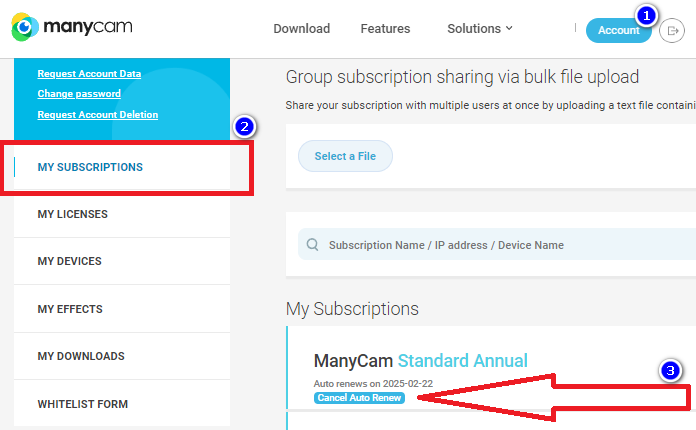
Option 1: Through ManyCam account
- Login to ManyCam account.
- Select ‘My Subscription’ from the menu.
- Locate your ManyCam subscription and click on ‘Cancel auto-renew’.
Option 2: Through payment processor
ManyCam uses 2Checkout and Stripe to handle payments.
If you purchased ManyCam through 2Checkout, proceed with the following instruction.
- Login to your 2CO myAccount at secure.2co.com.
- Navigate to the ‘My Products’ section.
- Locate your ManyCam subscription and click ‘Stop automatic subscription renewal’.
If you purchased ManyCam through Stripe, you can either:
- Cancel through ManyCam account (see option 1).
- Or request cancellation from ManyCam support (see option 3).
Option 3: Through ManyCam Support
Submit a request via the ManyCam support form to update your renewal preferences.
- Fill out the ‘Sales inquiry’ form at contact ManyCam.
- Wait for confirmation email from ManyCam support.
Option 4: Mobile Subscriptions
If you purchased ManyCam through an app store, you must cancel it there:
- iOS (Apple):
Go to Settings > [Your Name] > Subscriptions, select ManyCam, and tap ‘Cancel subscription’. - Android (Google Play):
Open Google Play, tap your profile icon > Payments & subscriptions > Subscriptions, select ManyCam, and tap ‘Cancel subscription’.