Black bars may appear when the resolution selected in ManyCam is not supported by your webcam.
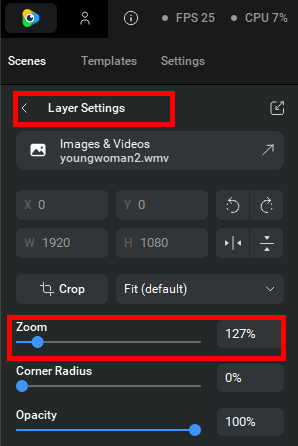
If your source is a camera, try to adjust the Webcam resolution to match ManyCam resolution or vice versa. You can also use the zoom feature from Layers settings.
Option 1: Adjust ManyCam resolution to match your camera resolution
Go to your camera setting to check the resolution.
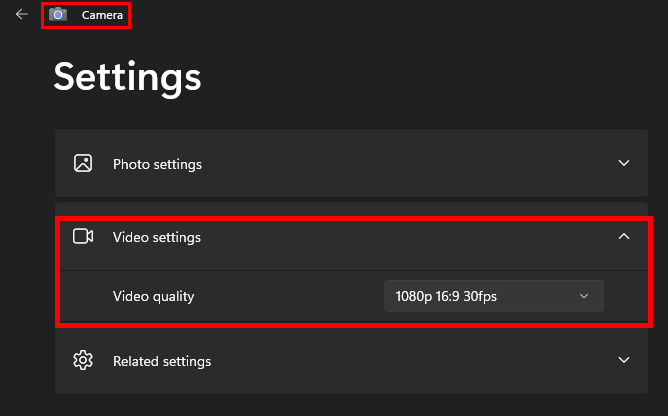
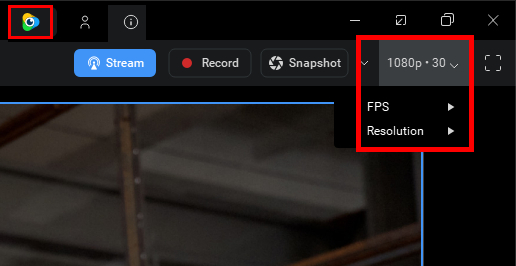
Select the same resolution within ManyCam.
Option 2: Adjust your camera resolution from ManyCam
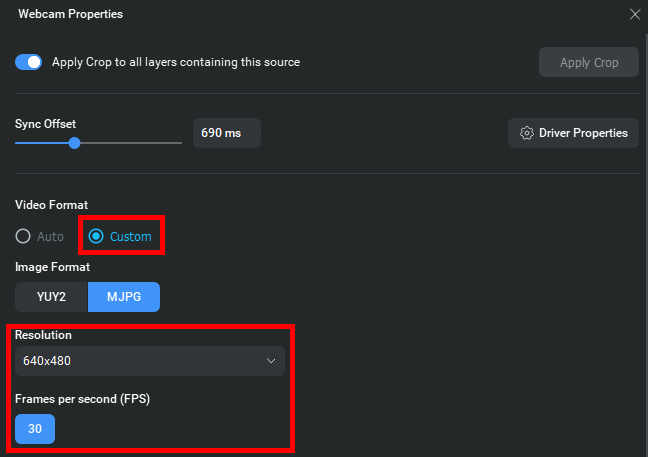
In ManyCam, right-click on the video feed of your webcam and select Properties.
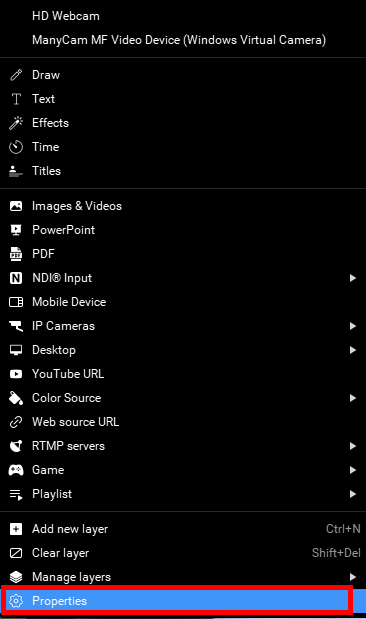
In the opened window, select Custom, and pick the resolution you want to use.
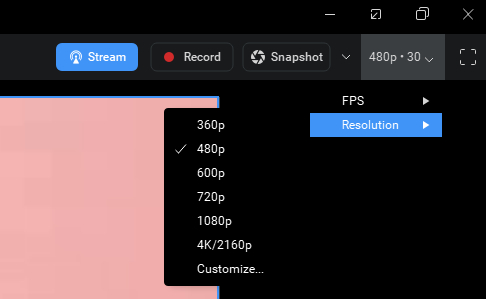
Select the matching resolution in ManyCam.
For example, if you picked 640×480 in the previous step, select 480p in ManyCam.
Option 3: Use zoom feature from ManyCam
From the ‘Scenes’ tab, select on the gear icon (Properties) next to the source name.
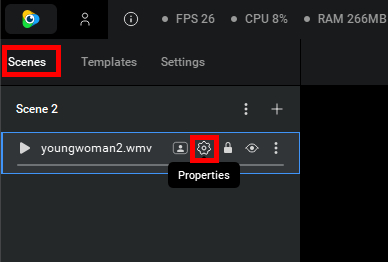
You will be prompt to Layers settings.
Adjust the zoom until you meet satisfaction.