So you just purchased a ManyCam Subscription, congratulations! You’ll be up and running in just a second.
Before you proceed with activating ManyCam
(this step is mandatory)
Make sure you have the latest version of ManyCam installed. Please go to download.manycam.com and click Download Now to download the latest ManyCam update. After you installed the update, proceed with the steps below.
What happened after you purchased ManyCam?
In order to activate your ManyCam subscription you must complete the following 3 steps:
- You receive an instruction message to the email address you used to purchase ManyCam.
- You need to assign the subscription in your ManyCam account from the Website.
- You need to activate the account from the ManyCam software.
Step 1: Instruction message
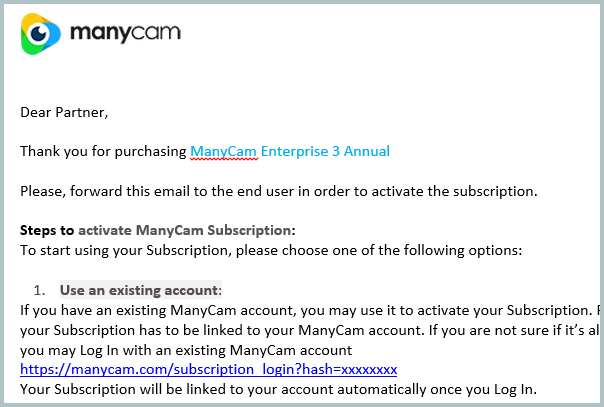
When you finalize your ManyCam transaction, you will receive an email with important information on how to activate the ManyCam subscription. This email is sent to the same email address you used when purchasing ManyCam. If you did not receive the e-mail you should reach out to support for assistance with activation.
Step 2: Assign the subscription to your account from the Website
The instruction email you received includes a link to your subscription.

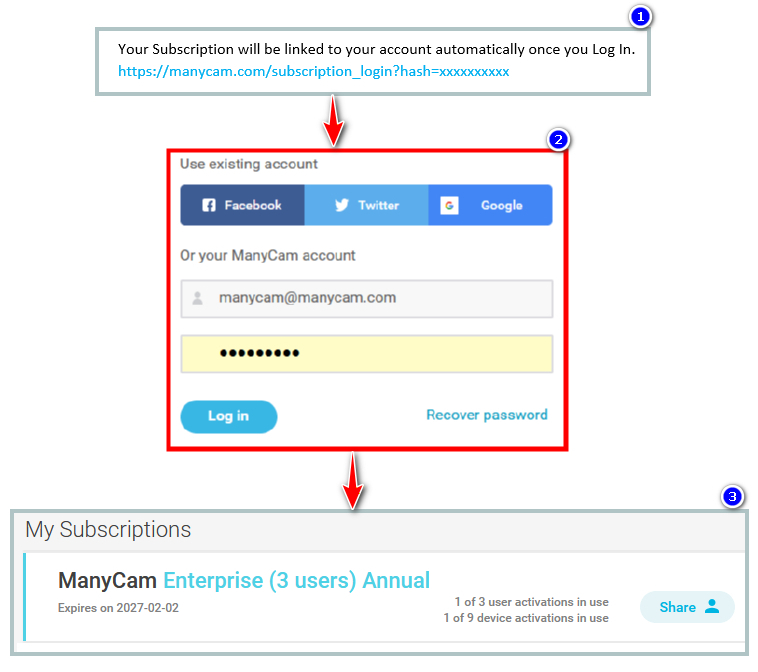
* If you already have a ManyCam account or want to login with social media account,
- Click on the link from the instruction email.
- Login to your account with your credentials.
- The subscription will be stored in your account.
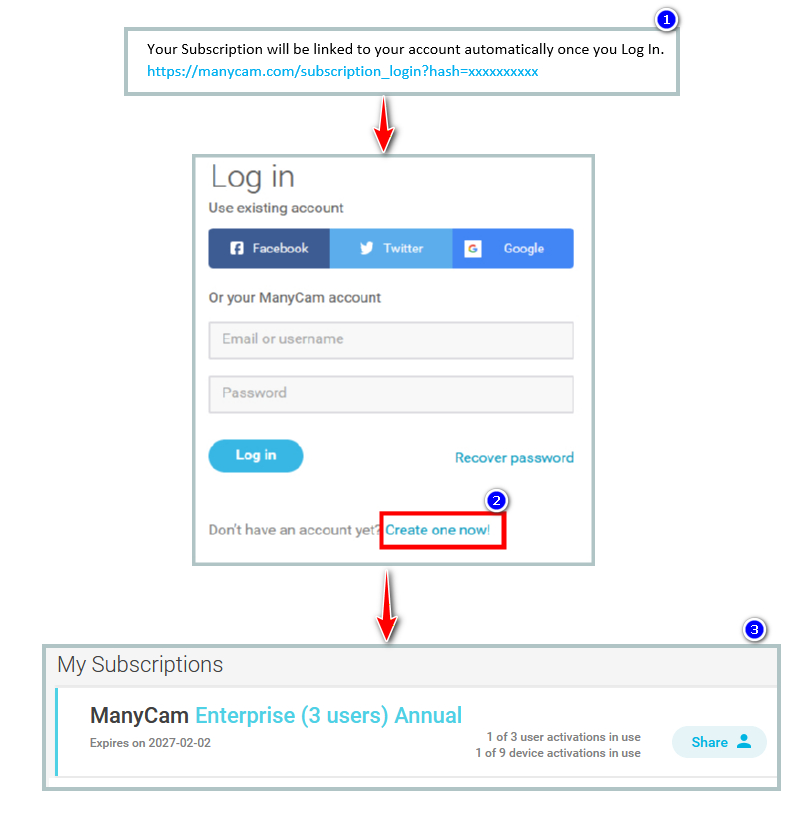
* If you do not have a ManyCam account yet,
- Click on the link from the instruction email.
- Create a ManyCam account. You have the option to create a username/email and password. Remember your sign in option as this is how you will have access to your subscription.
Note: you can create a ManyCam account with a different email address than the one you used to purchase ManyCam. - The subscription will be stored in your account.
Step 3: Activate ManyCam from the software
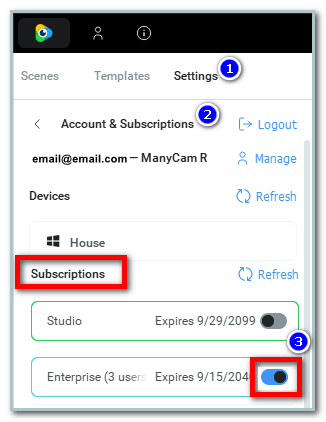
- Navigate to Settings / Account & Subscriptions.
- Login to you ManyCam account.
- In order to enable the subscription, turn on the switch as shown below.
Read more about subscription activation from the software from this page: Sign in to ManyCam
Step 4: Share ManyCam subscription
Subscription sharing is available in ManyCam Enterprise subscription plans only.
To share a subscription,
- Sign in to your ManyCam account on our website. Be sure to use the same ManyCam account that you used to purchase your subscription.
- In the My Subscriptions section, click the Share button next to the subscription title.
- Enter the email of a person you want to share your subscription with.
Read more about this from subscription sharing page: Share subscription.

Video tutorial
This video shows you step by step how to activate ManyCam in three easy steps.
Troubleshooting
In ManyCam 9, the settings tab is located upper left. In ManyCam 8, the settings icon is located in the upper-left sandwich menu of the application. In ManyCam 7, the icon is in the upper-right corner.
Each ManyCam subscription limits the number of devices (Windows, macOS desktop) that can be activated concurrently. macOS: In individual subscriptions (Standard, Studio, Premium), one device applies to one user of the operating system (individual subscriptions can’t be shared between users or ManyCam accounts). Multiple activations per user and subscription sharing are available in Enterprise and Education plans only. Windows: ManyCam subscription is now device-based and acts globally across all OS users and ManyCam apps. Activate multiple editions (desktop, Lite) and instances of ManyCam for Windows simultaneously with a single device activation on a single machine, even if they are installed under multiple OS users. Video sources are ManyCam video presets located under the Main Live Window that can be used to create prearranged scenes containing various multimedia materials, effects, video settings, etc. Learn more here.
The ManyCam watermark will be removed automatically once you activate the subscription.
If this doesn’t happen, please make sure you are running the latest version of the software and check that your subscription is enabled in ManyCam Settings > Account & Subscriptions.
The Activation limit reached message indicates that you don’t have spare activations left.
You can easily solve this by resetting your activations in your ManyCam account at ManyCam.com. Please refer to this guide: how to reset your license
This is the most common error when activating ManyCam. Please refer to this guide to resolve the problem.
Please refer to this guide to resolve the issue.